How to Link Your Pocket Money Account to Upwork
Step 1: Get Your Pocket Money USD Account
Once you download Pocket Money (iOS, Google Play), you’ll get:
- Account Number
- Routing Number
- Account Type (Checking)
Basically, everything a U.S. bank account has.
Step 2: Go to Your Upwork Payment Settings
- Log into Upwork
- Click your profile picture (top right)
- Go to Account Settings
- Click Withdrawals
You’ll see all available withdrawal methods.

Step 3: Add a New Payment Method
- Click: “Add Method”
Now here’s where most people mess up. Upwork will show you “recommended” options first. Ignore them. Scroll down.
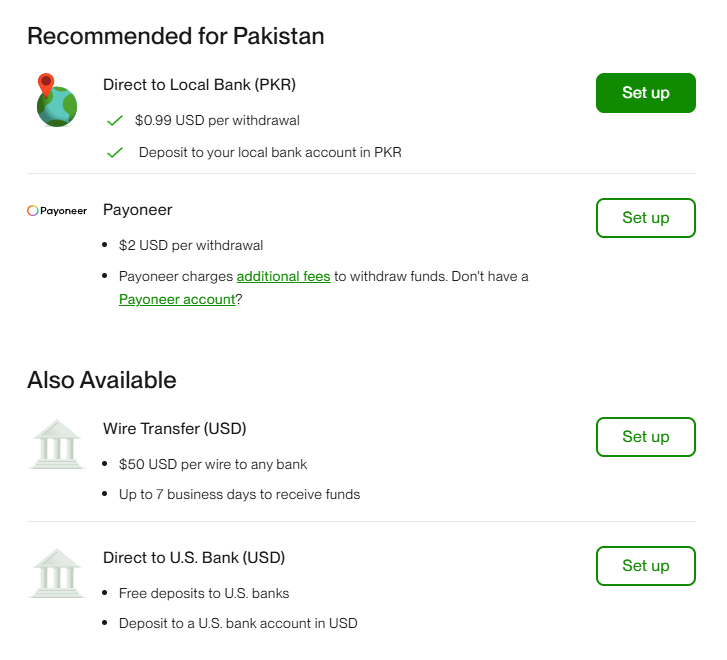
Step 4: Select the Direct to U.S. Bank (USD) Option
Choose: Direct to U.S. Bank (USD)
This is the only option you want.

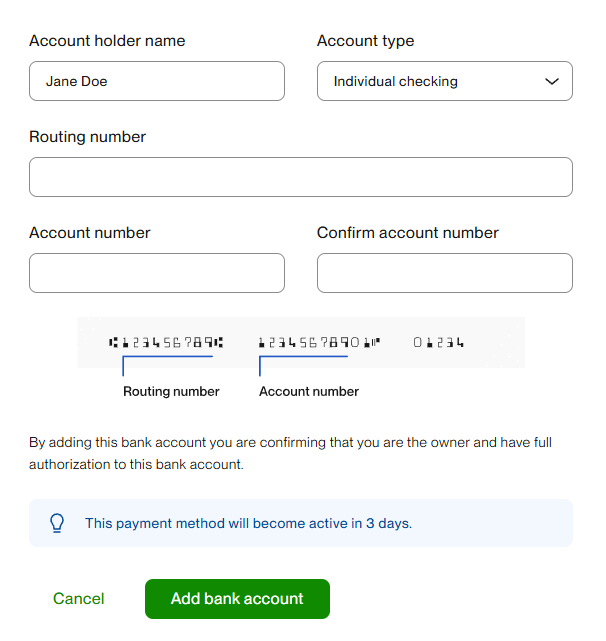
Step 5: Enter Your Pocket Money Details
Fill in carefully:
- Account Name: Must match your Upwork name exactly
- Routing Number: From Pocket Money
- Account Number: From Pocket Money
- Account Type: Checking
Take your time here. This is not the moment to freestyle.
Step 6: Wait for Verification
Upwork will review your account.
- Takes 2–3 business days
- Totally normal
Pro tip: don’t wait until you need the money to do this.

Step 7: Start Withdrawing for $0
Once approved:
- Withdraw via ACH
- Pay zero fees
- Get your full amount
Yes, that means: $1,000 → $1,000
No “where did my money go!?!?!?” moments.
You keep more of what you earned. Freelancing is already hard enough. You shouldn’t lose money at the finish line.
Say “Yes” to Pocket Money — iOS | Google Play